How To Make a YouTube Banner: A Step-by-Step Guide [+Design Tips]
Looking to make your brand-new YouTube channel look more complete and professional? Or maybe you have had it for a while but are still struggling to get subscribers? The answer lies in your YouTube banner.
YouTube banners are more than just a decoration. Just like your logo design, it’s a symbol that instantly communicates your brand’s personality and story. It’s also a powerful tool that can establish professionalism and subtly nudge your audience to hit that subscribe button.
Join us as we break down how to make a YouTube banner–the right YouTube banner dimensions, the best design tips to follow, and the tools to use.
Let’s get started!
Why Your YouTube Banner Matters
Think of your YouTube banner as a book cover. It catches people’s eye amidst a sea of channels, intrigues them to take a closer look, and gives them an idea of what type of videos to expect.
People will scroll away if you leave your banner empty (or use an unappealing one). And you can’t afford to miss all those potential subscribers, especially if your channel is just starting out!
A beautiful YouTube banner can also:
- Communicate your brand: Your banner’s design, including the color and font you use, can reflect your identity, personality, niche, and the tone of your videos. This helps establish your brand with your audience.
- Attract the right audience: People are drawn to things that are interesting or relevant to them. By designing a banner that aligns with your channel, the people who see it and then subscribe are the exact viewers you are trying to reach.
- Boost your credibility: Imagine seeing a channel without a banner, profile photo, or a randomized name like “Joe1234.” Will you subscribe? Probably not, as it looks like the channel is not taking this seriously enough. A polished banner, on the other hand, makes you look more professional and legitimate in people’s eyes.
What are the YouTube banner dimensions?
Before designing your banner, you need to know the technical stuff. YouTube requires every banner to meet its technical guidelines, and if you upload one that doesn’t adhere to them, you’ll risk having blurry, misaligned, or unreadable banners.
So how big is a YouTube banner? The current recommended size (as of 2024) is:
- Official dimensions: 2560 x 1440 pixels
- Standard safe area for text and logos AKA the “Safe Zone”: 1546 x 423 pixels
- Aspect ratio 16:9
- JPG, PNG, GIF, or BMP file type
- Maximum of 6MB size
One crucial thing to remember is that your YouTube banners will be displayed on different devices, such as a laptop, desktop computer, phone, or even a TV.
This is why we have the “Safe Zone.” It’s the part of your banner guaranteed to show up properly on whichever device you use. It won’t be blocked by your profile photo, won’t be cropped if the screen is smaller, etc.

Always double-check if all your important details fit inside the “Safe Zone.” This way, your key message will be delivered to your audience no matter where they see your banner.
Make sure to check out our article on Social Media Design Formats as well to learn the right size guidelines for other channels besides YouTube.
Design Tips for an Eye-Catching YouTube Banner
You may now know that you need a banner, but do you know how to design a great one?
Here are some best practices you can follow to help you create a beautiful YouTube banner:
Align it with your branding
Top channels are easy to remember because their visuals consistently align with their personality, identity, videos, and general branding aesthetic.
Ask yourself the following questions:
- What is your brand identity? What personality would people associate with you?
- What kind of content do you make? Are they tutorial videos? Deep dives into educational topics? Lifestyle vlogs? Gadget reviews?
- What is the tone and feel of the content? Humorous and witty? Serious and professional? Warm and friendly?
- Who is your audience? What kind of design will resonate with them?
Based on your answers above, you can create a design to convey them.
For instance, fitness channels can use action shots or illustrations with dynamic poses such as jumping or running. They can also use high-energy colors like red, orange, or yellow.
Channels with the Y2K aesthetic can use retro-inspired elements like butterflies or Walkmans, wavy fonts, checkered patterns, or neon colors.
Need more examples? Take a look at Annika’s Leaf channel. She is a lifestyle vlogger that focuses on her cozy, simple, day-to-day life. Her banner reflects all that, with it being a simple photo of her studio with warm lighting.
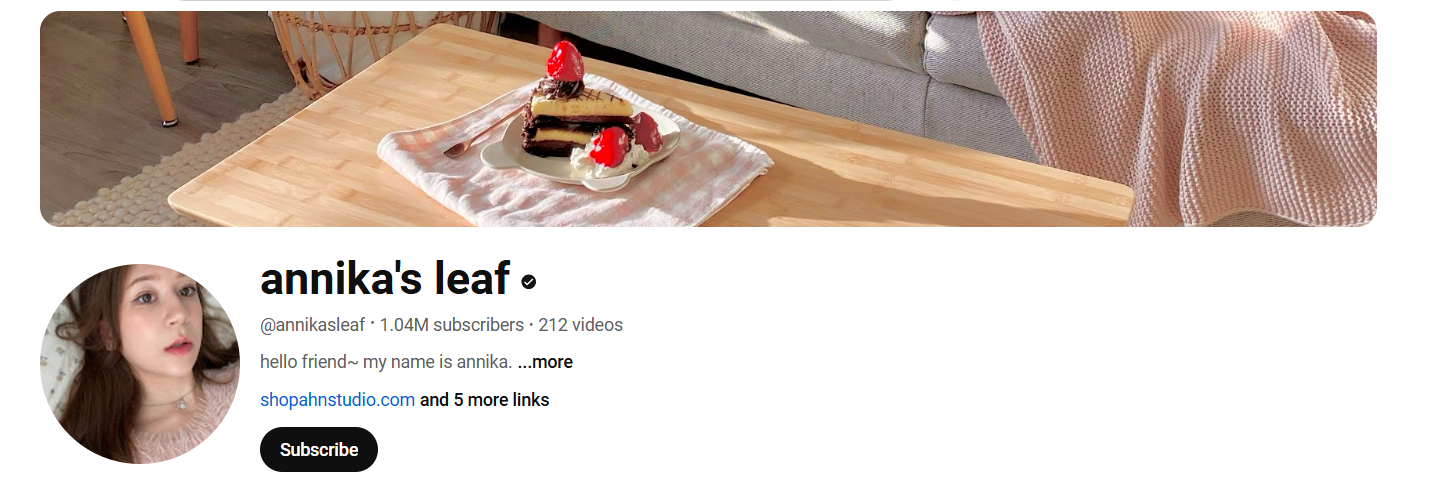
In contrast, Beepworld’s banner is more colorful and quirky. While she is also a lifestyle vlogger, her content focuses more on fashion and other artistic endeavors. Her banner reflects her more fashion-forward and offbeat aesthetic.

Keep it simple and clean
Focus on one clear message, story, or theme. The simpler the message is, the easier people will get it.
Want to highlight the joy of cooking? Then a banner that shows you smiling while cooking or a nice photo of your whimsically decorated food is a great option.
Want to promote your upcoming event? Then highlight only that information on your banner—no need to mention the one happening next month or next year.
People only have an attention span of around 8 seconds. Don’t overload your banner with information, text, graphics, colors, or images that will take long to understand.
Use high-quality graphics
Whether you’re using a banner template, a photo, or digital art, make sure you use high-definition images. That should ensure that your banner will look clear and sharp even if you view it on a bigger screen.
Again, don’t forget to check if your banner meets the size guidelines. Banners that are too small will be stretched out to fit, making them look blurry and pixelated.
Use contrast wisely
Contrasting colors make it easier to read or see your graphics.
For example, black text on a white background is easy to see. The same goes for the reverse. But a red-orange text on a red background will just blend in with each other.
This also applies to your font style or font size.
Bigger text is more visible when contrasted with a smaller text underneath it. This is based on visual hierarchy. If you want to guide a person’s eye to an important text, use a bigger and bolder font for them.
Add your schedule
Do you follow a strict upload schedule, say a video every Monday at 9pm? You can add that information to your banner. That way, your audience knows when to come back to your channel.

Get your audience involved
Want to make your audience feel more like a part of your channel? Ask them for their insights on what direction to take your banner! You can put a poll on the Community tab or create a Short that asks them to comment on their votes.
How To Make a YouTube Banner With BrandCrowd
Ready to design your banner? BrandCrowd’s YouTube banner maker is here to help. Our huge collection of customizable templates makes it easy for beginners or non-designers to create the banner of their dreams.
Simply follow these steps:
Step 1: Access the tool
Go to our YouTube Banner maker and enter a keyword related to your channel or the design you want. For example, “gaming,” “coffee,” “polka-dot,” etc.

Step 2: Choose the right template
Now you can see some available designs. Don’t like the ones you see? You can add your business name or upload your logo. This will help our tool find designs that are more suitable for you.
Click the design that resonates with you to edit it.

Step 3: Customize the design
You can now upload your logo (if you haven’t yet) or change the colors to fit your brand colors better. You can also adjust the text, font, positioning, or layout. You can also add high-quality illustrations, photos, shapes, or patterns from our library.
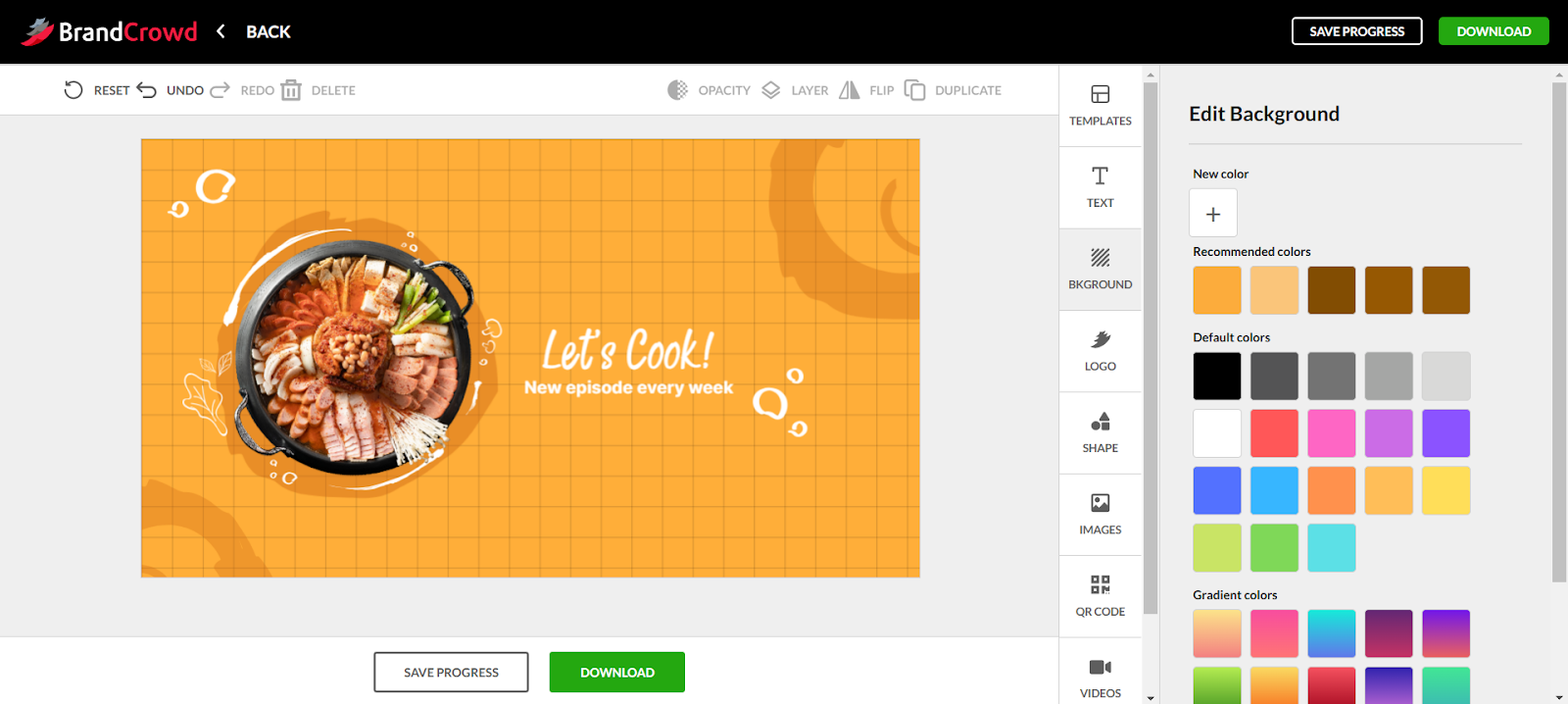
Step 4: Finalize and download
Happy with the final look? You can click the “Download” button to get your design. BrandCrowd provides your banner in the YouTube-accepted file formats so you won’t need to worry about that.
Why Use BrandCrowd for Your YouTube Banner?
BrandCrowd is the best tool to use for small businesses, startups, newbie content creators, or non-designers as:
✅ It’s easy to use: Simply click the options on the right tab to add elements to the banner. Need to change layout? Just drag the elements around to move. No complicated techniques required!
✅ It has a wide range of templates: Whatever niche you may have, we have a design for you. Whether it’s cars, gaming, culinary, fashion, tech, dental, real estate–you name it, we got it!
✅ It’s time and cost-efficient: Don’t have resources to hire a designer? You can still have beautiful and professional designs by using our templates. Since these are premade, you also won’t need to use up your limited time creating a design from scratch.
✅ It meets YouTube’s banner guidelines: All of our templates are made in the required YouTube banner dimensions, so you won’t need to worry about resizing. We also provide the files in multiple formats (all YouTube-approved) so there’s no issue with that as well!
How To Upload a YouTube Banner
Uploading your YouTube Banner is simple. Follow these steps:
- Sign in to your account. Click YouTube Studio or go to https://studio.youtube.com/.

- Click “Customization.”

- Click “Upload” under “Banner image.”

- You can preview the image and make the necessary adjustments. Click “Done.”

- Click “Publish” and you’re done! If you want to change or remove the banner, you can go back to Customization to do so.

Conclusion
Whether you’re a small business owner, an aspiring influencer, or a content creator, a strong banner design can make your channel pop.
Follow our tips above, and you, too, can create a banner that accurately represents your brand and captures your audience’s hearts.
Need more YouTube materials? Feel free to check out our other customizable templates for YouTube Shorts, YouTube Videos, and YouTube Channel Icons.
If you need more guidance on navigating the YouTube landscape, you can also check out our other blog articles below.